Calendars & Appointments
How to setup Appointments with your Clients and Team
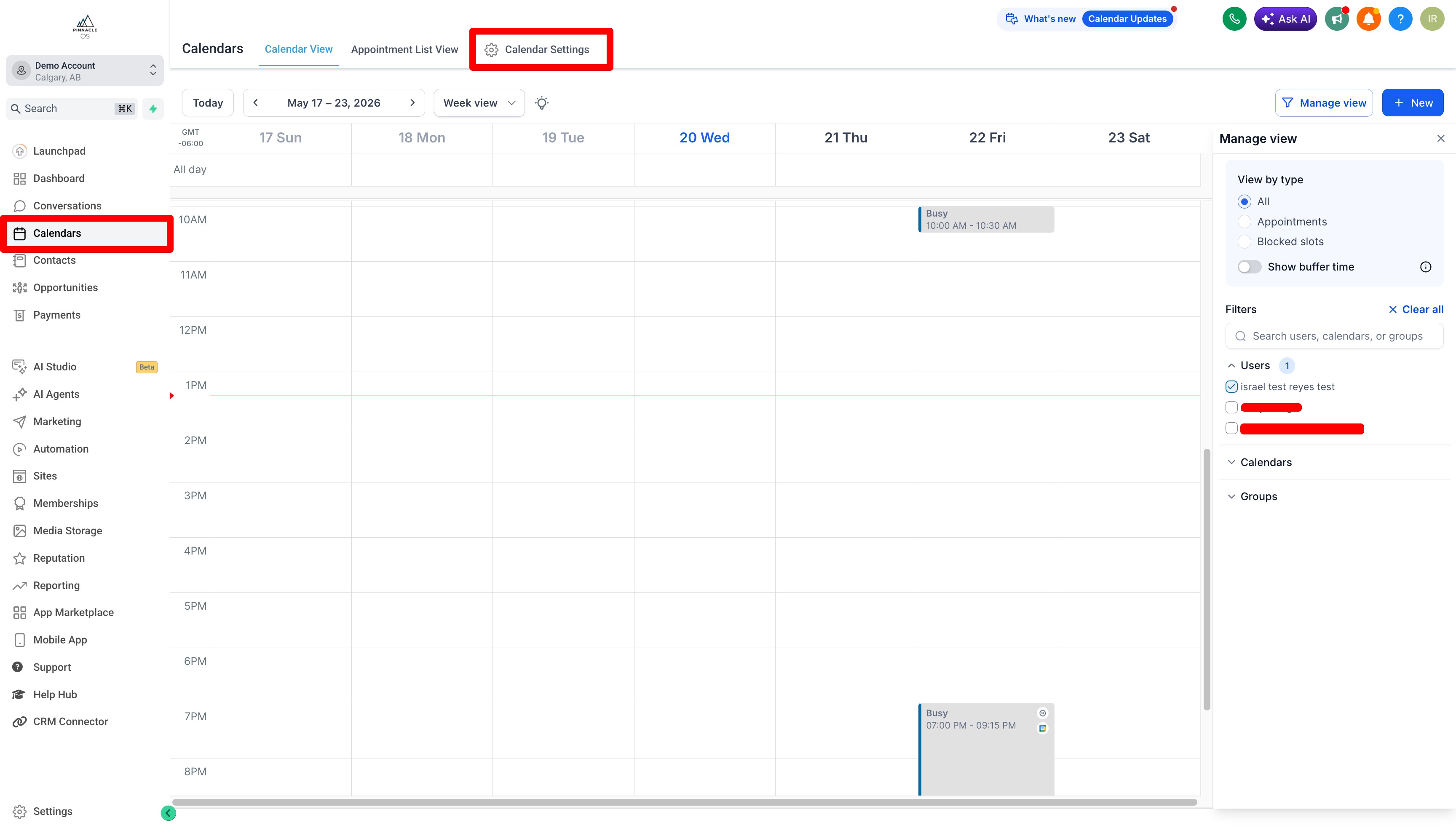
Go to Calendars > Calendar Settings
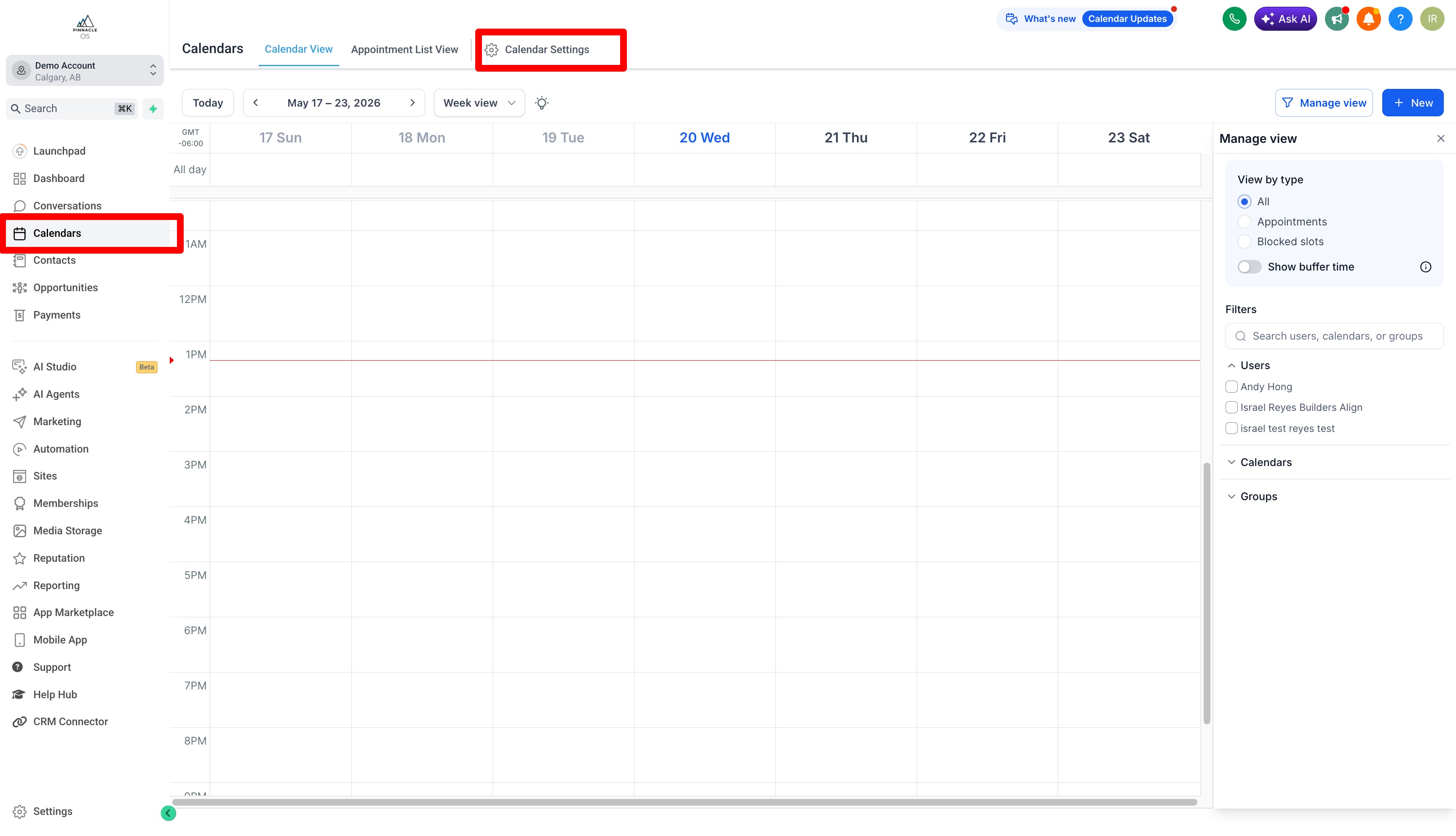
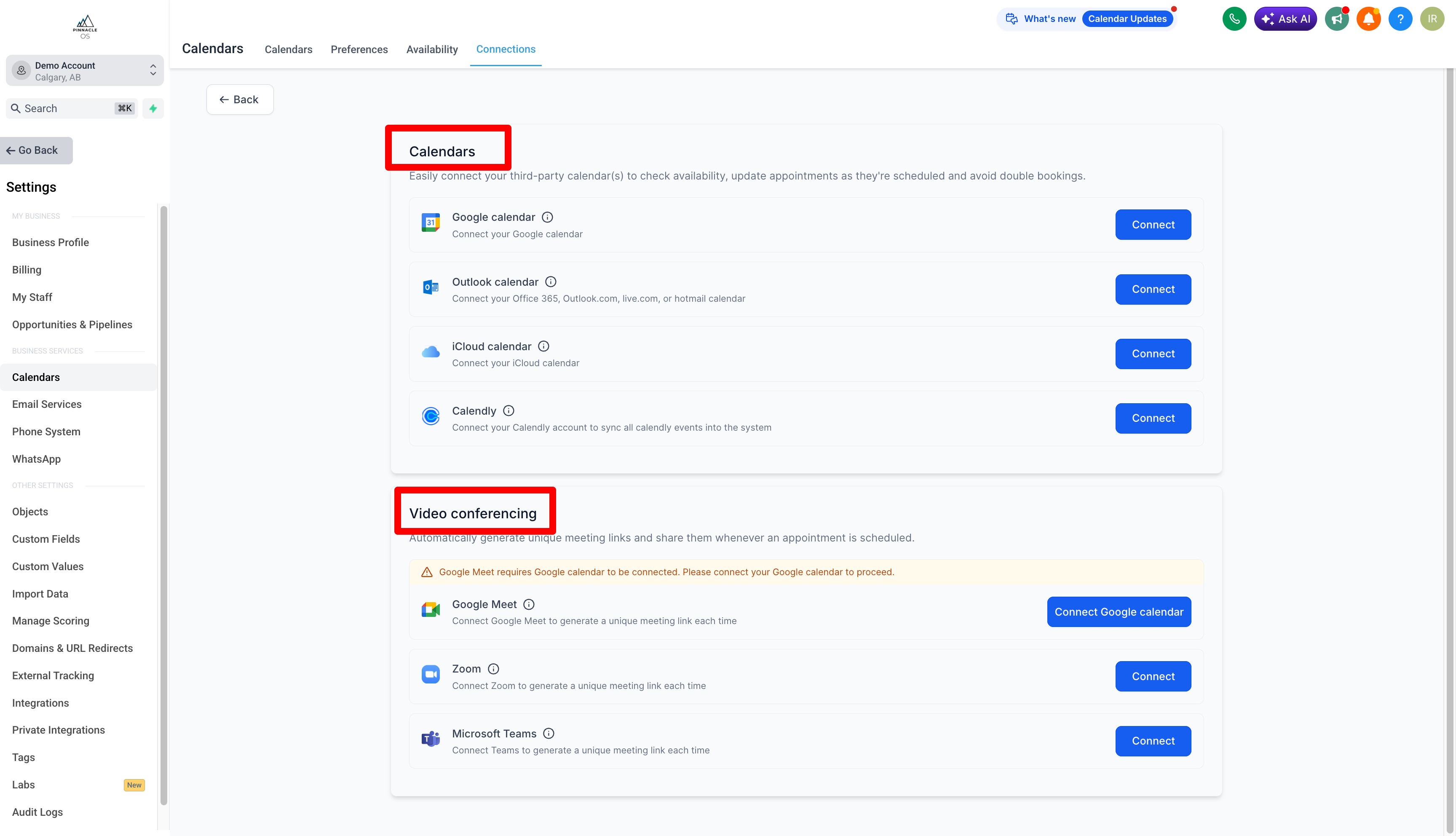
By Default you will have a "Personal Booking Calendar Link" but to connect with your current calendar, go to Connections
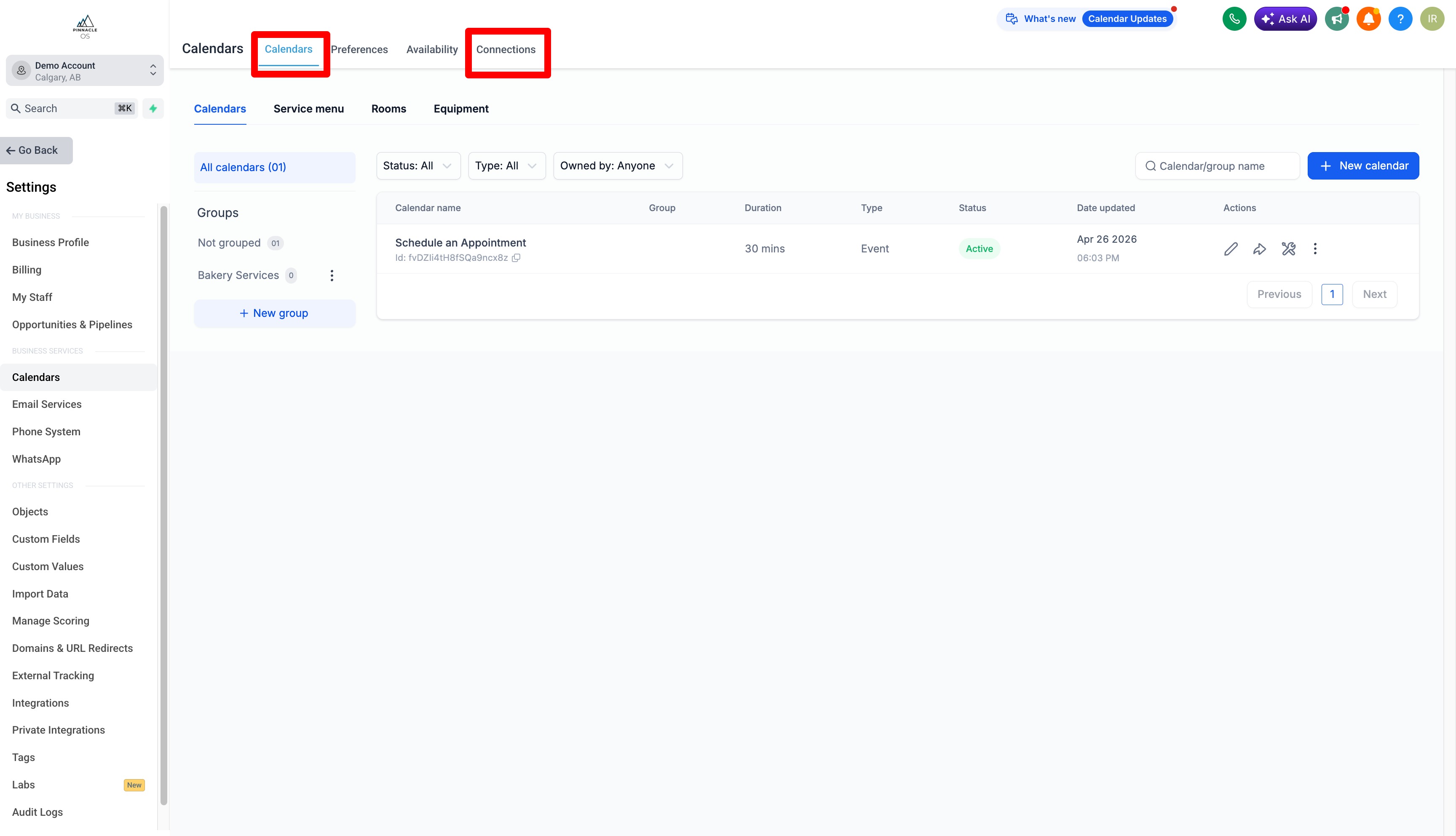
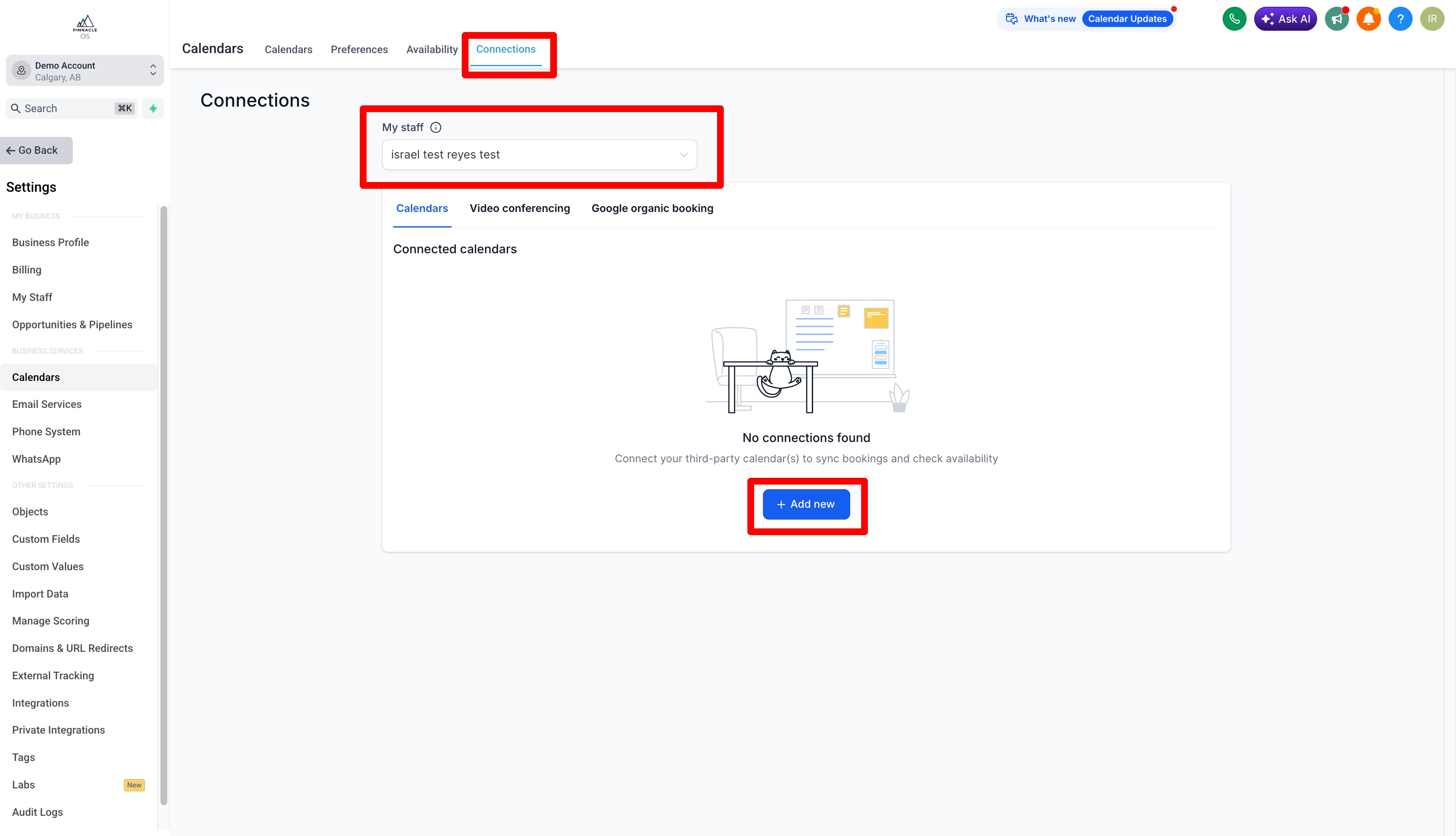
Select your User
Then Add New Connection
Select the type of Calendar you are associated with: Google Calendar, Outlook, Calendly or iCloud
You can also specify which Video Call you can use: Google, Zoom or Microsoft Teams
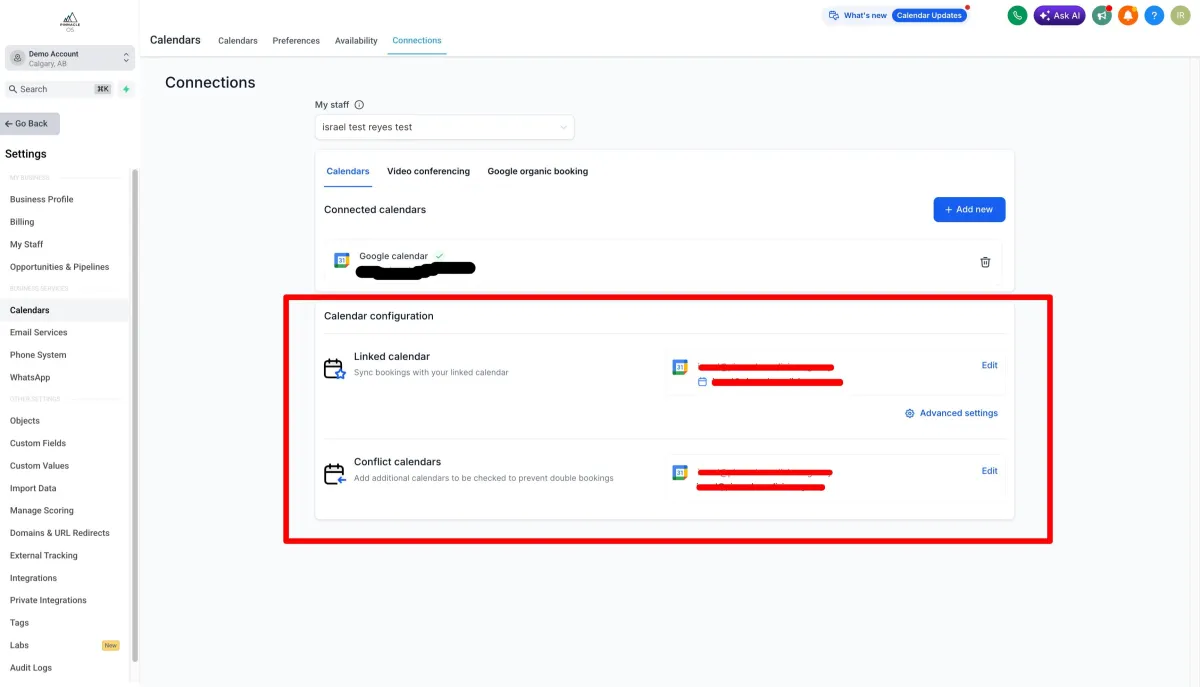
Once Connected you can view the calendars you are linked with:
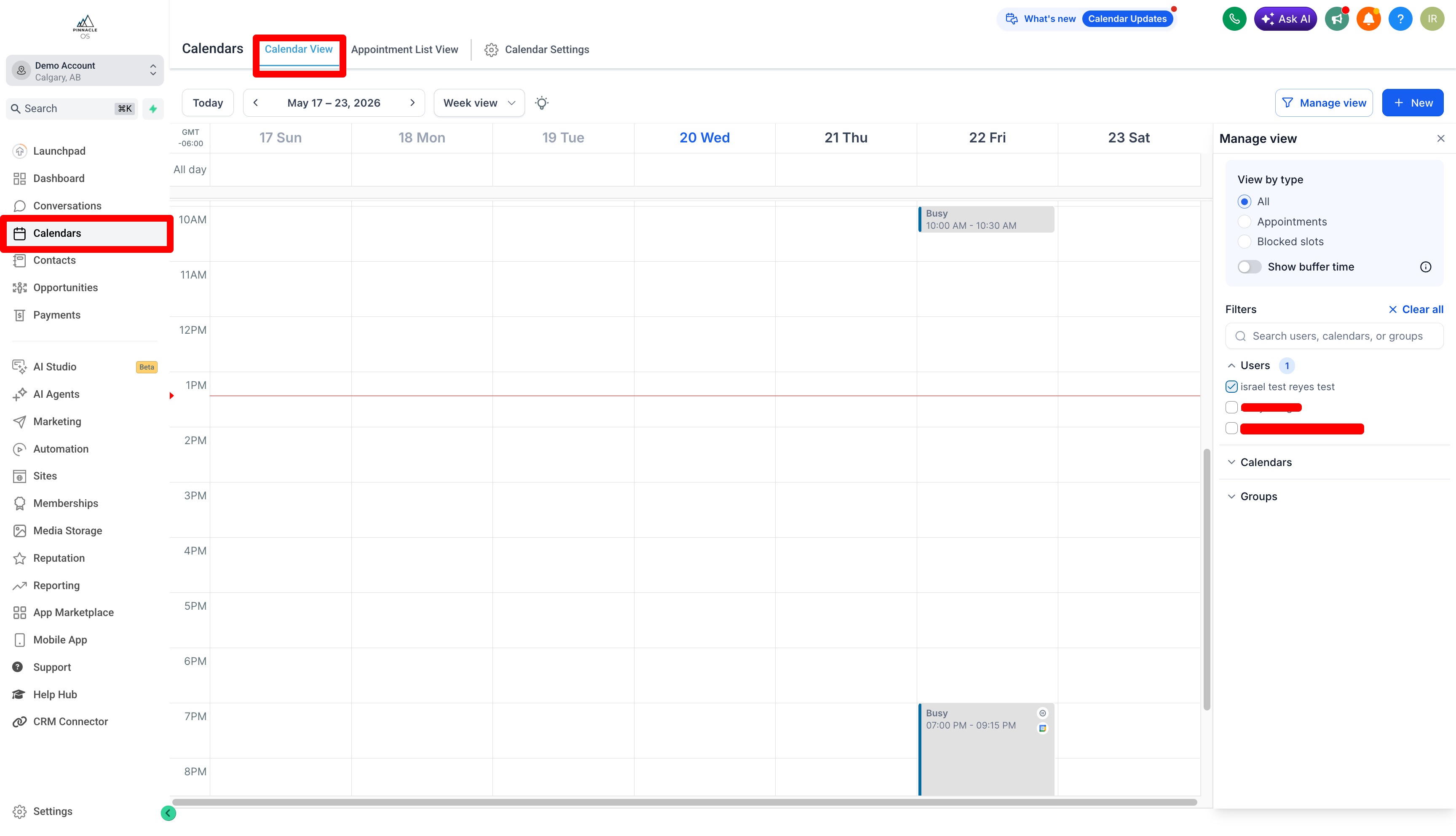
Go back to your Calendar > Calendar View and Select the User on the right to view the User's calendar.
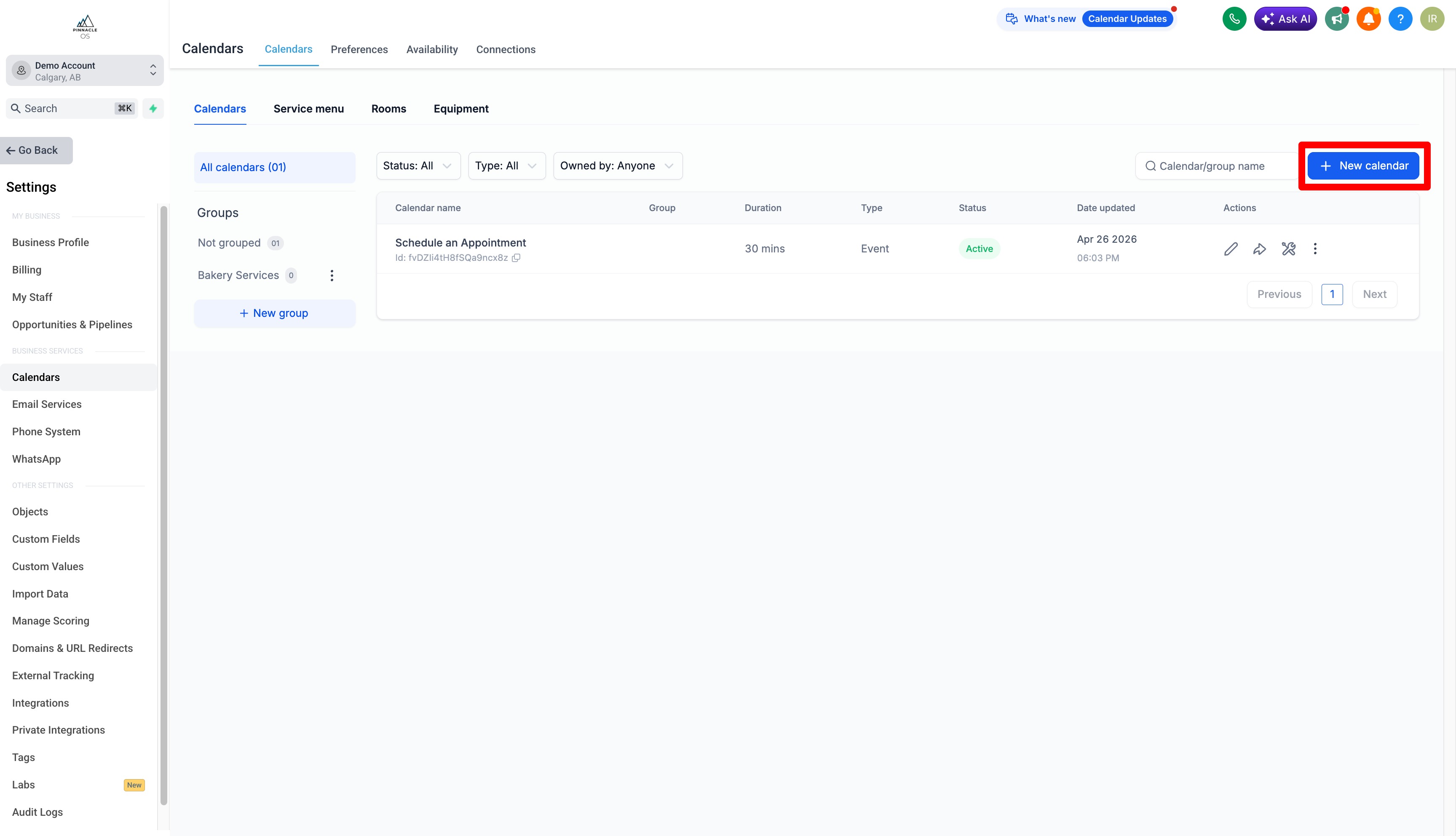
To Create and Send Calendar Links go to Calendars > Calendar Settings
Add New Calendar
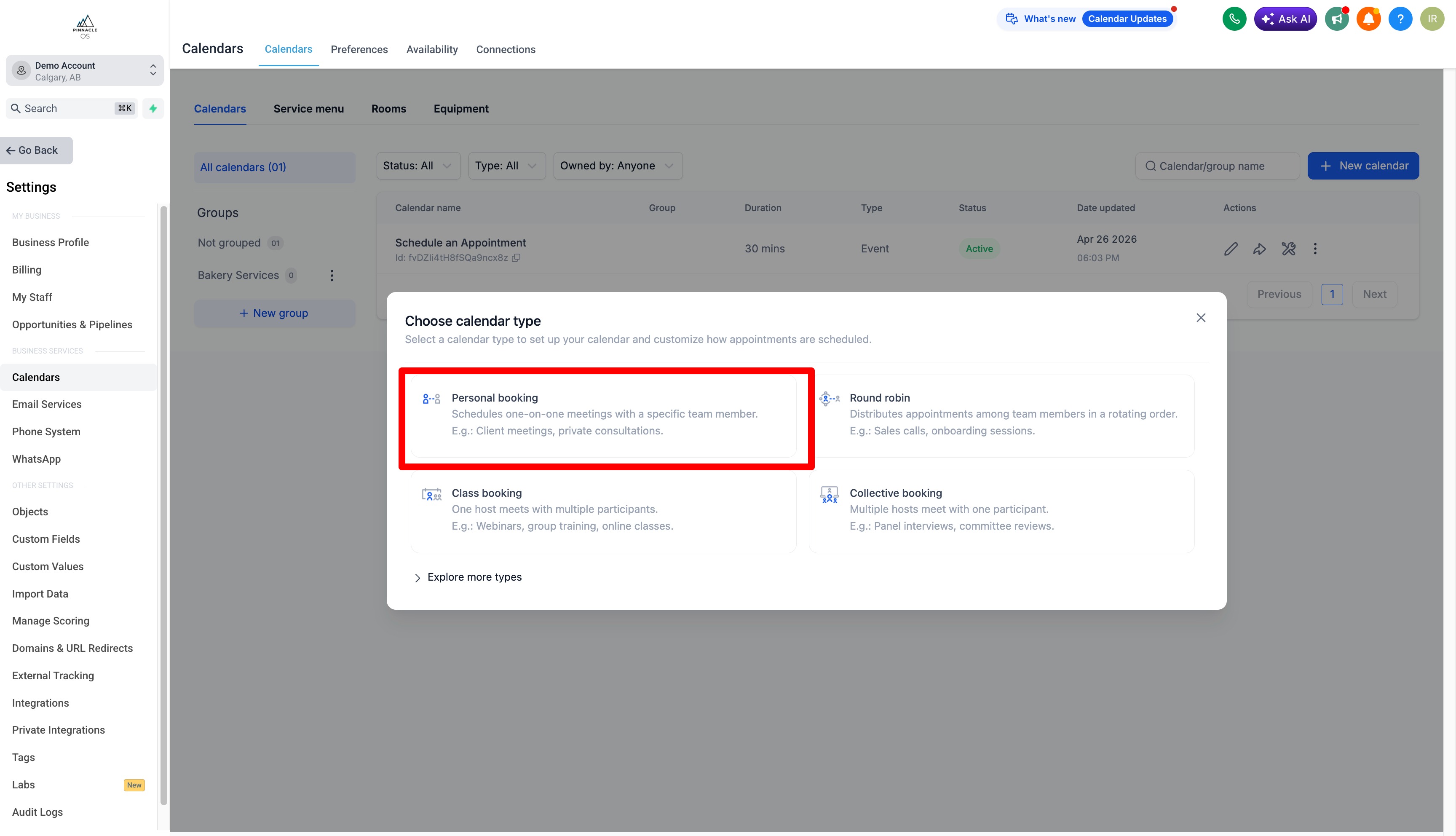
There are 4 types of Calendar bookings. For now use the Personal Booking Link
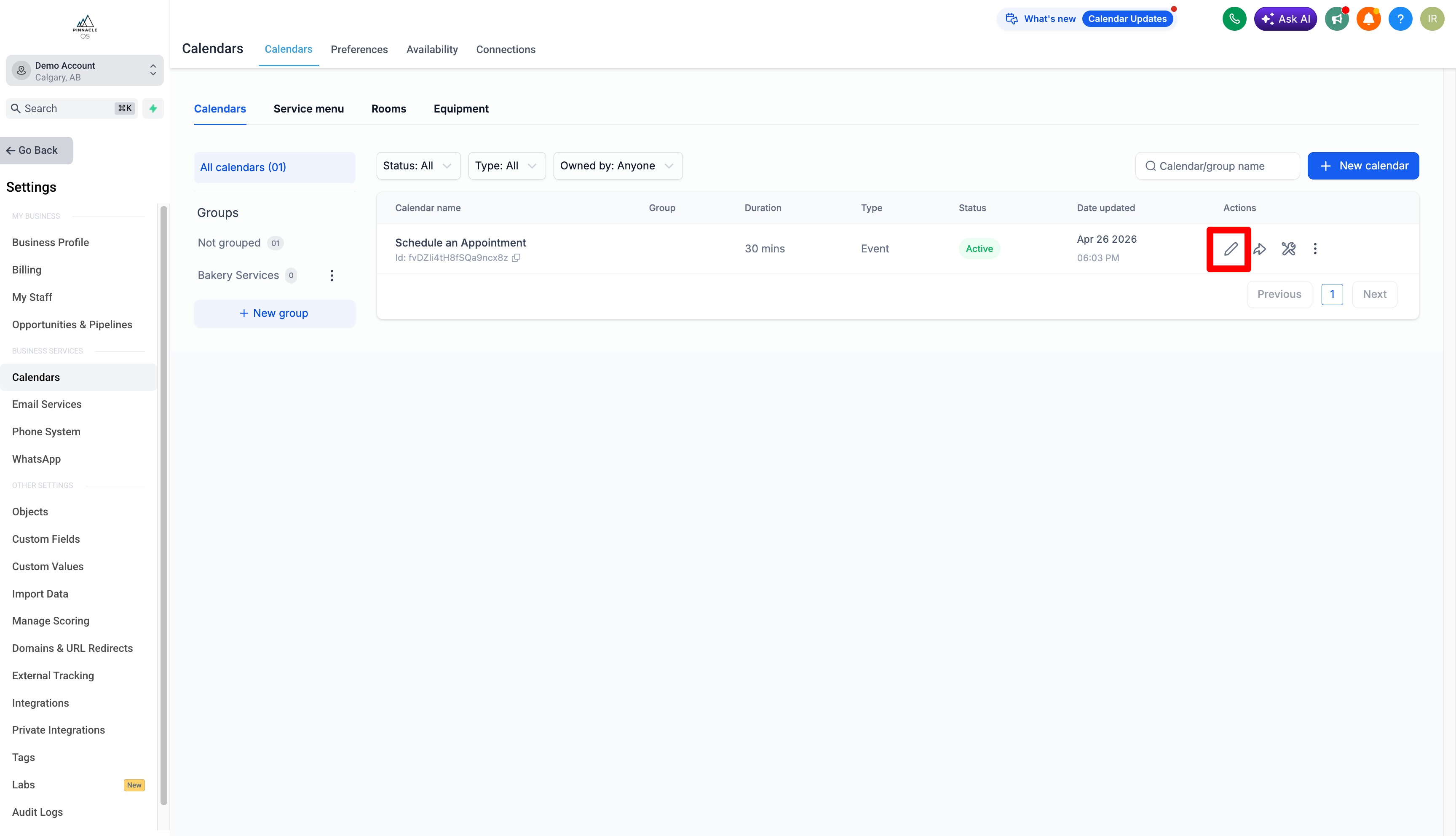
You can also edit calendar settings under the Actions "Pencil"
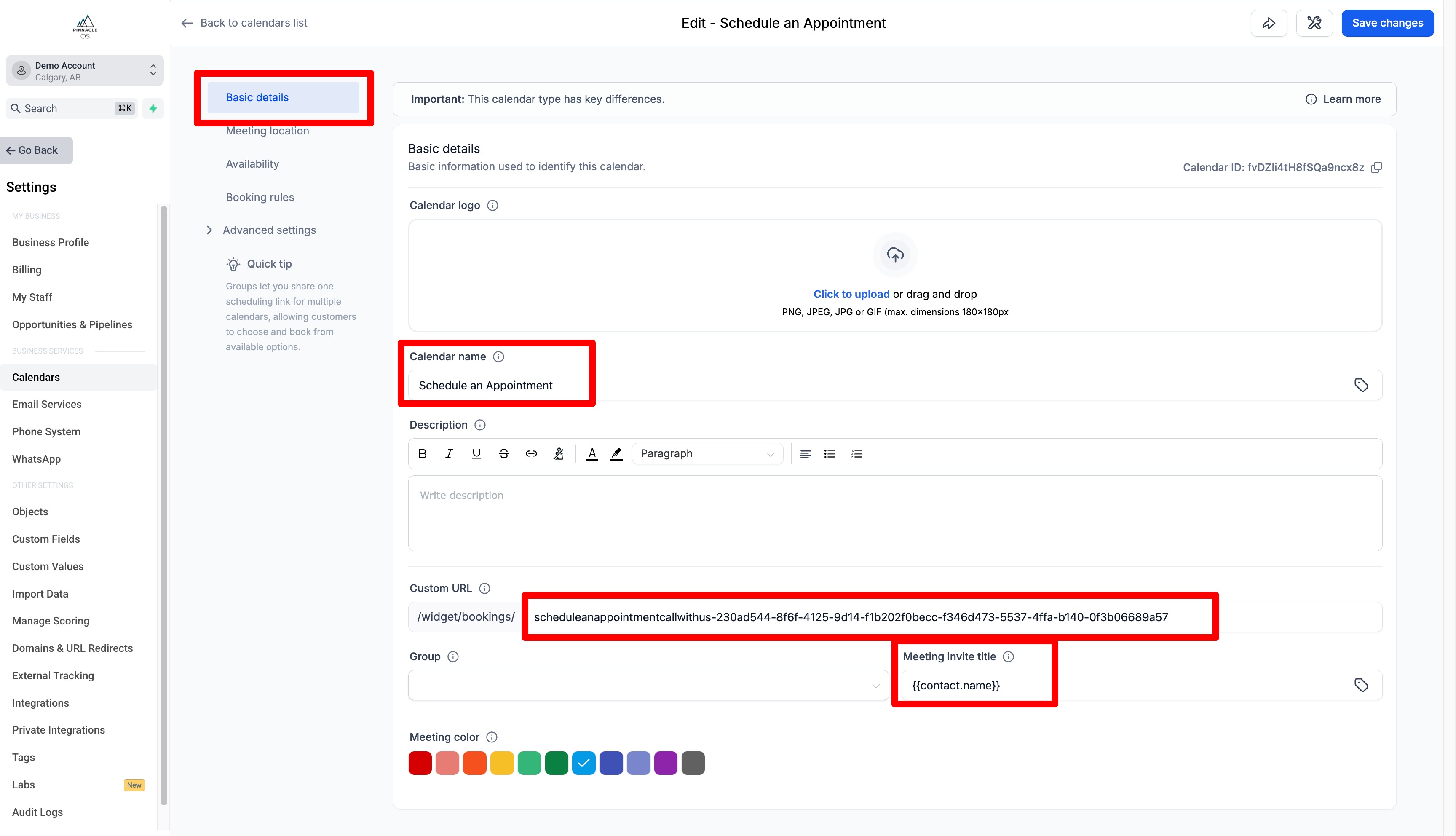
You can edit the details of your booking link
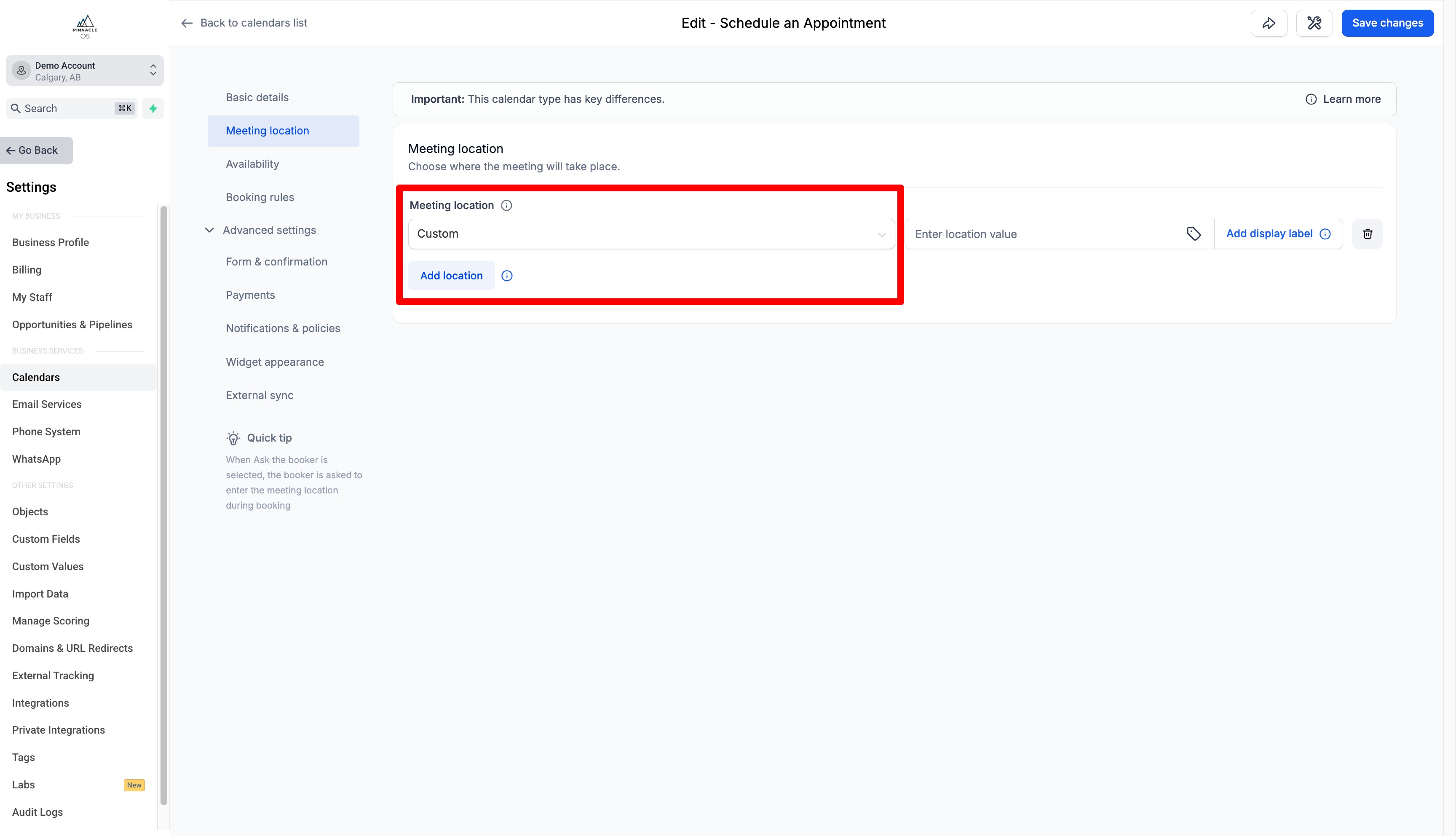
Change the Meeting Locations to your video call link
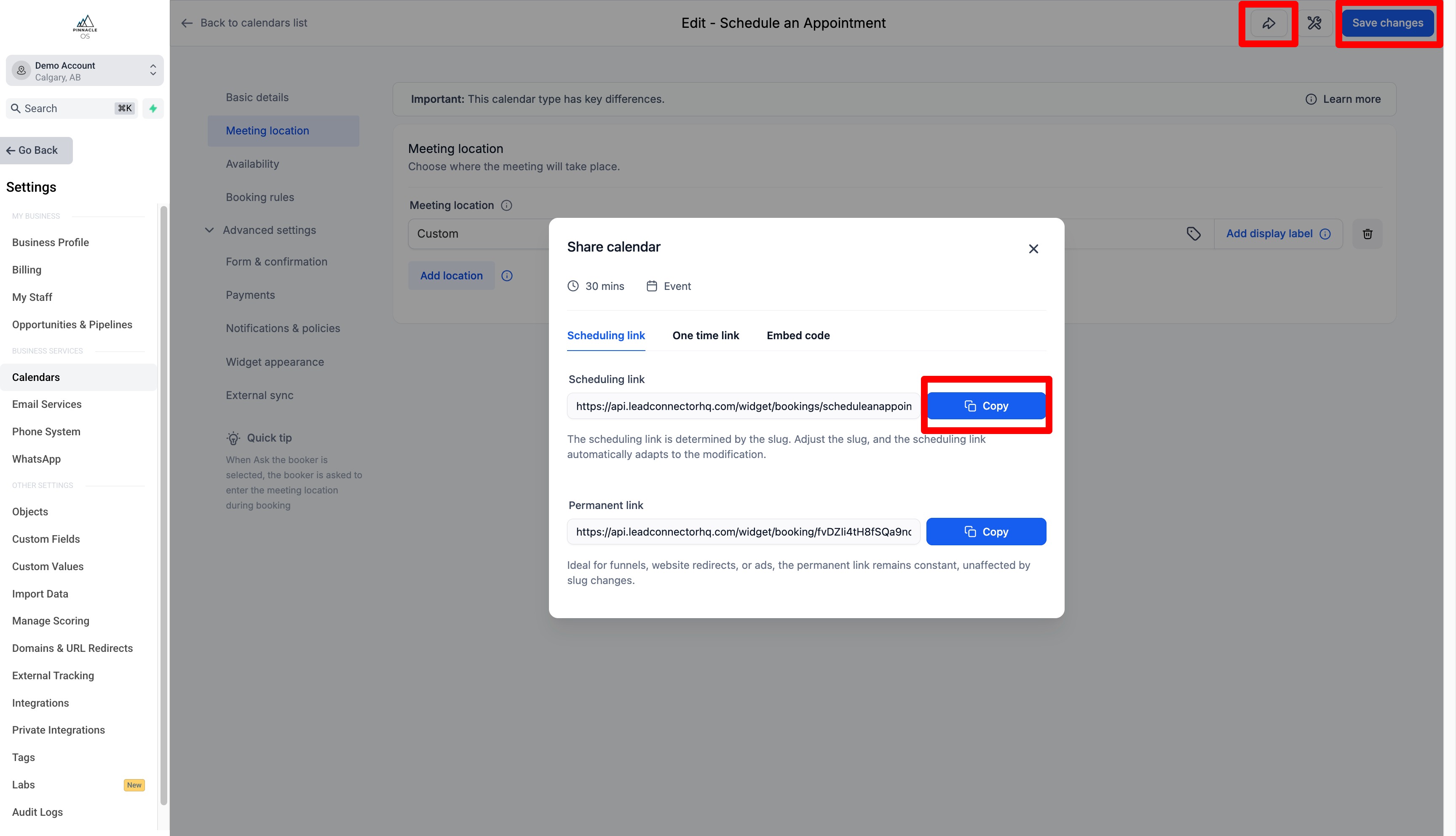
After you save the changes to your booking link, press the share button to create a link.
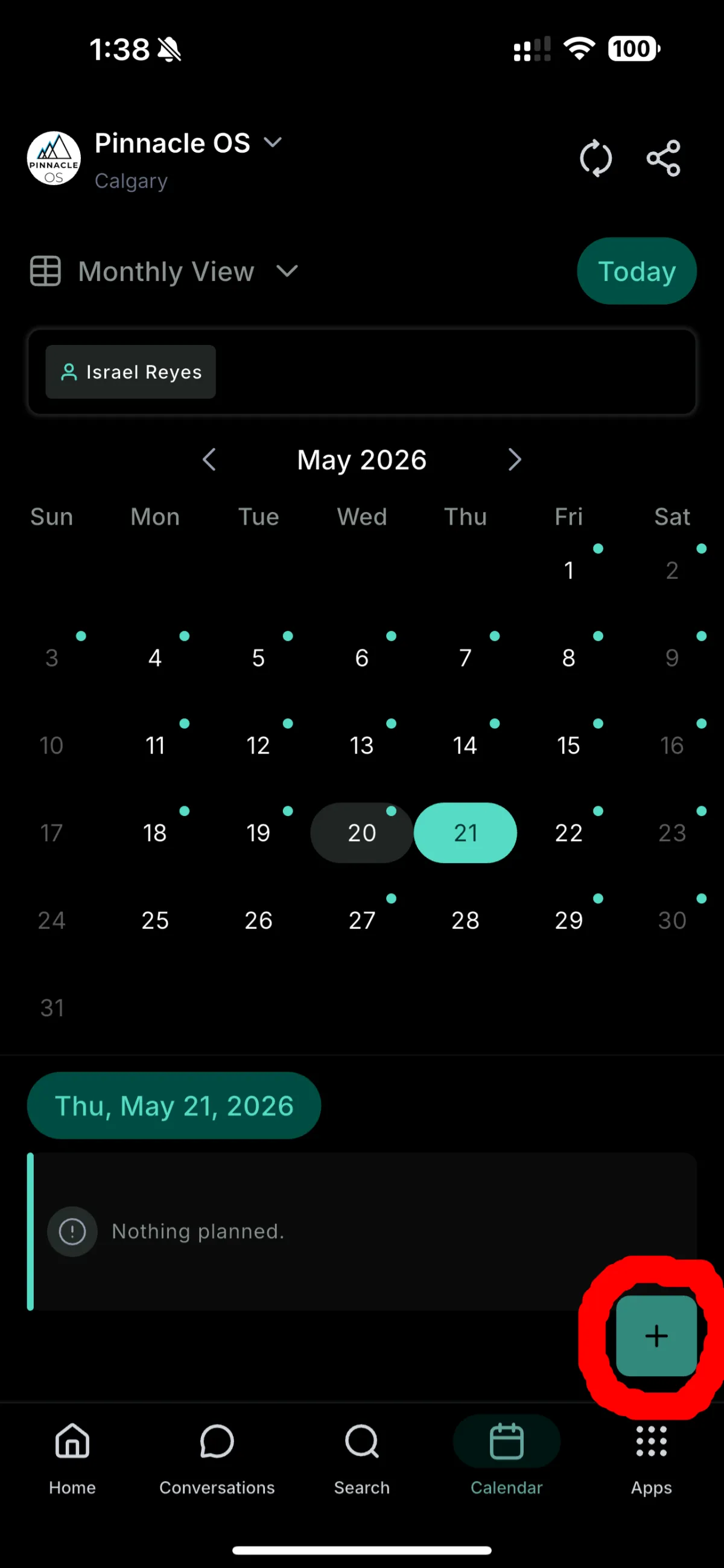
To send booking links on your phone, go to the Pinnacle OS app > Calendars > (+) button
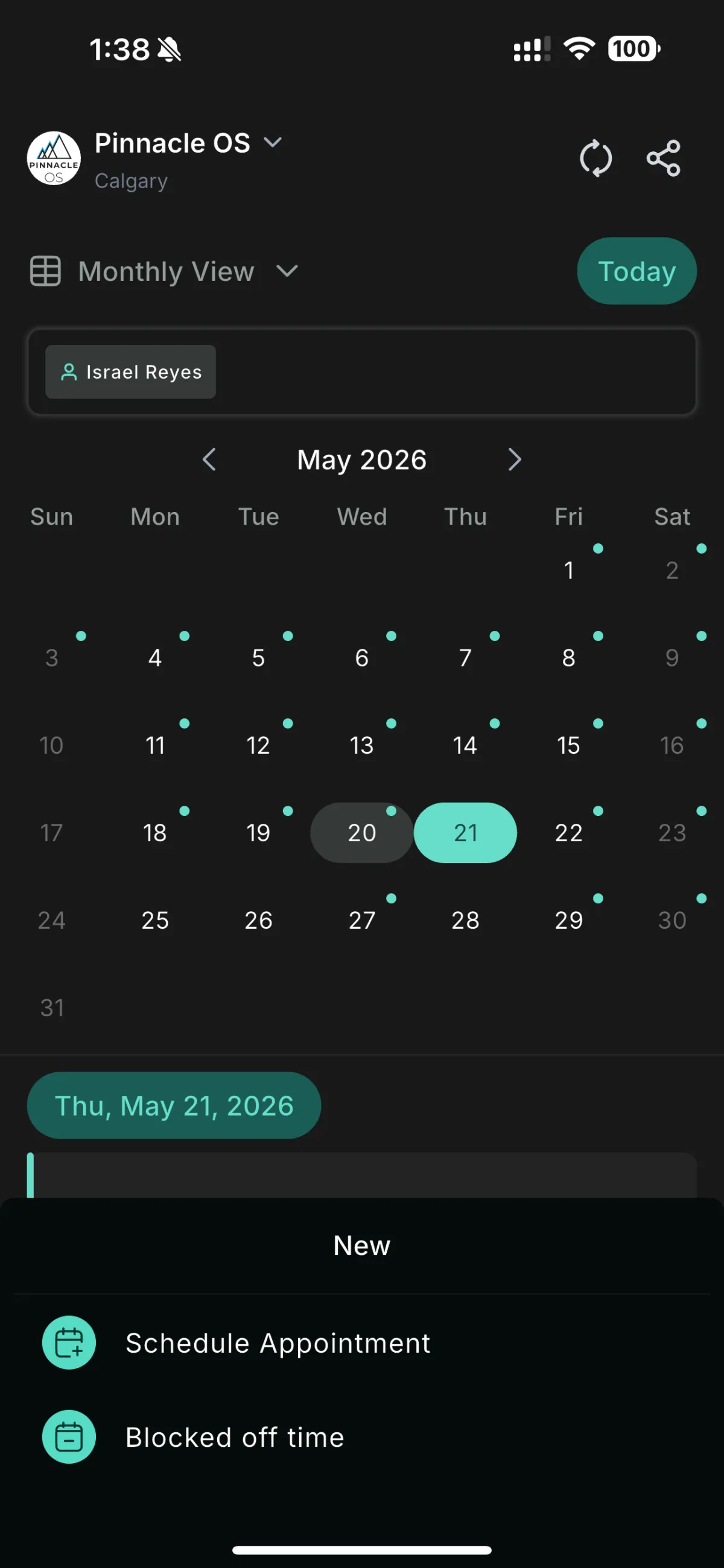
Schedule an Appointment or block off a time based on your availability. When you select Schedule Appointment you can select the Contact you'd like to send the appointment with. They will be automatically sent an invite after booking the time.
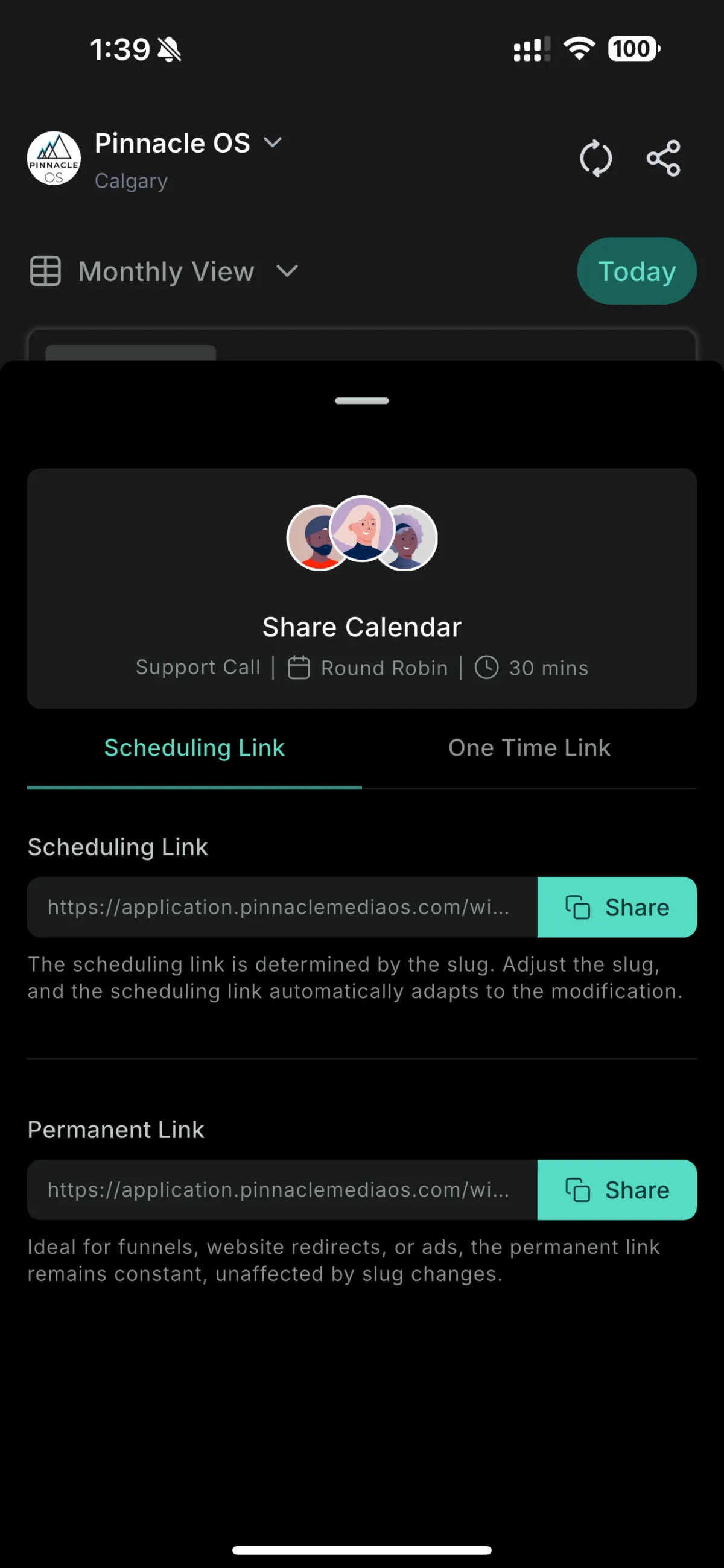
To send booking links on your phone, go to the Pinnacle OS app > Calendars > Share button on the top Right
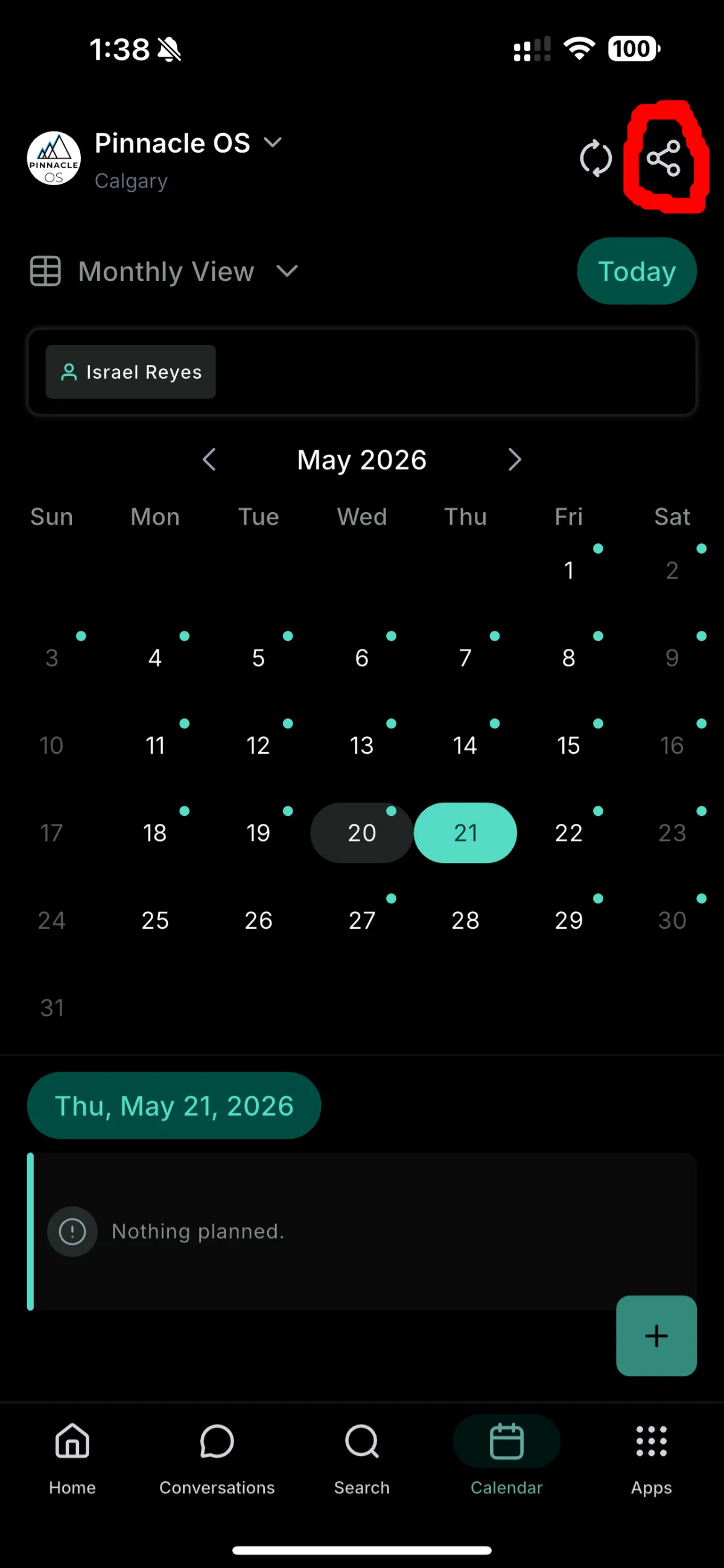
Select the calendar booking link
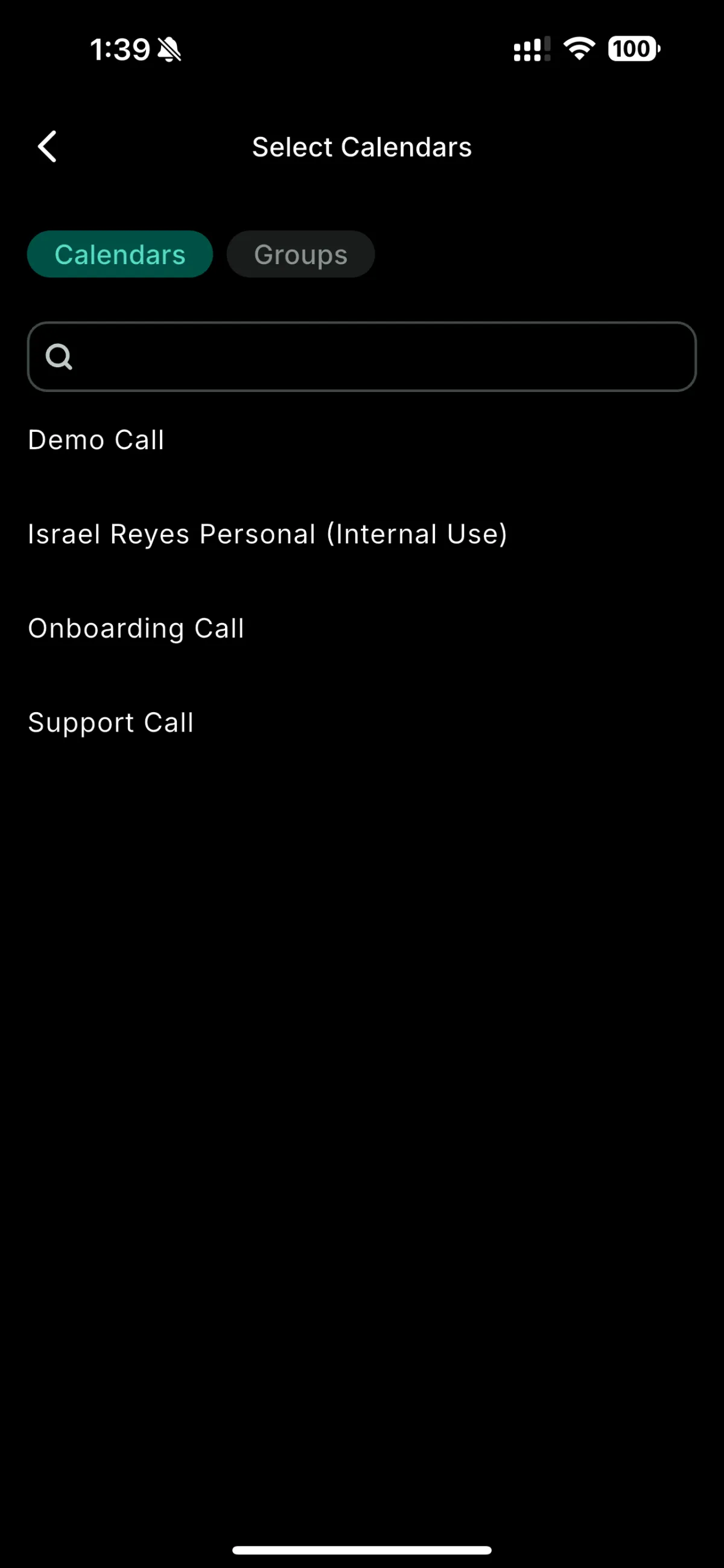
Press Share to copy the link so you can manually paste onto your emails or text messages