Creating Estimates
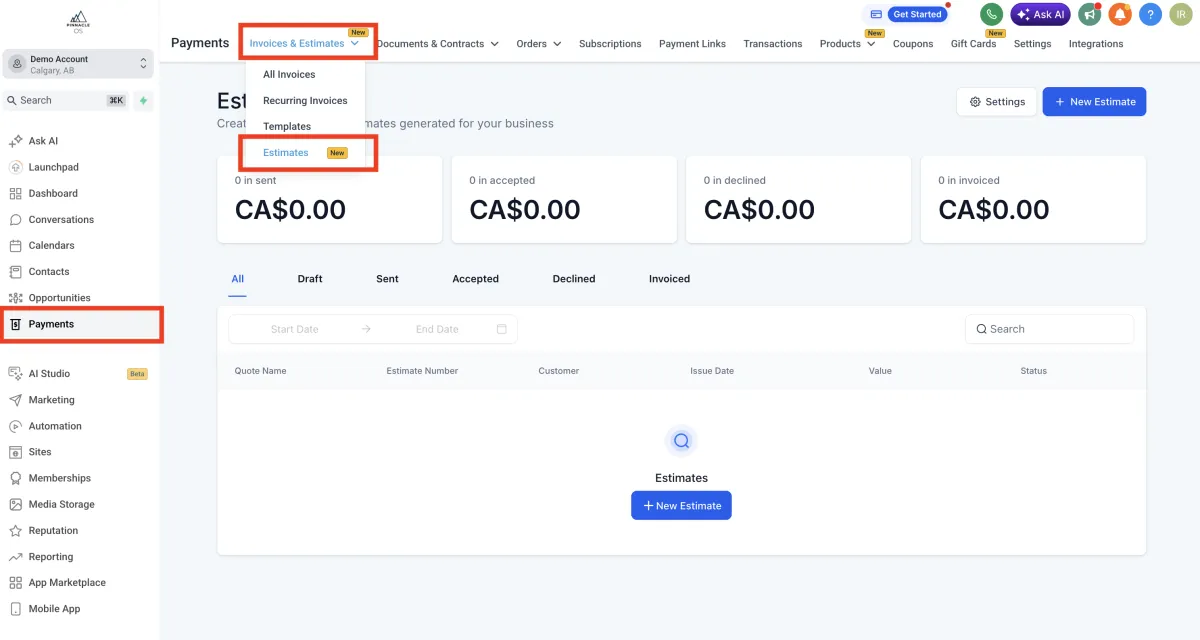
Navigate to Payments > Invoices & Estimates.
Select Estimates
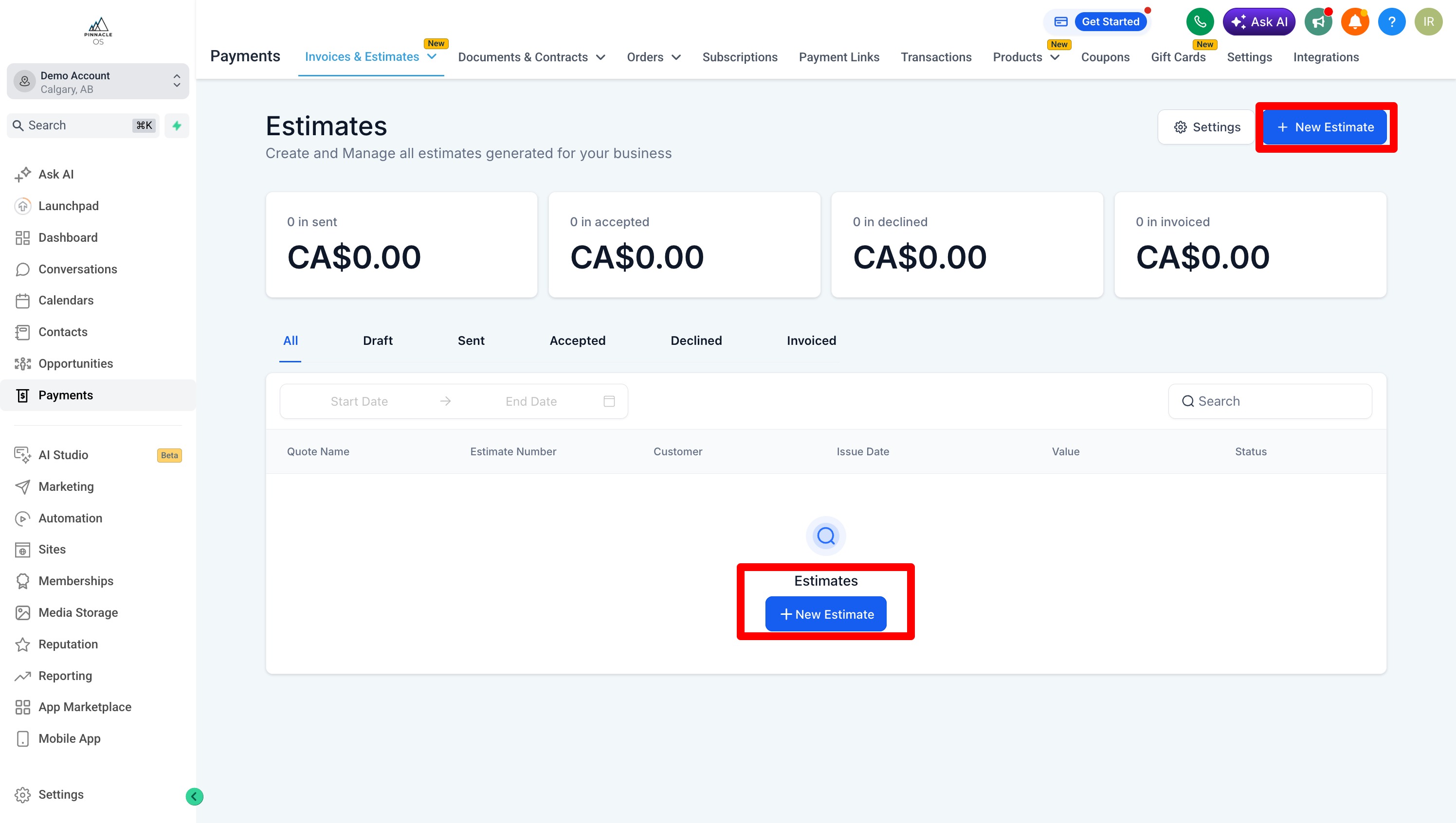
Select New Estimate
Name Your Estimate
Add your Customer Information
TIP: Ensure your Contact is already added in the Contacts Tab with their Name, Number and Email
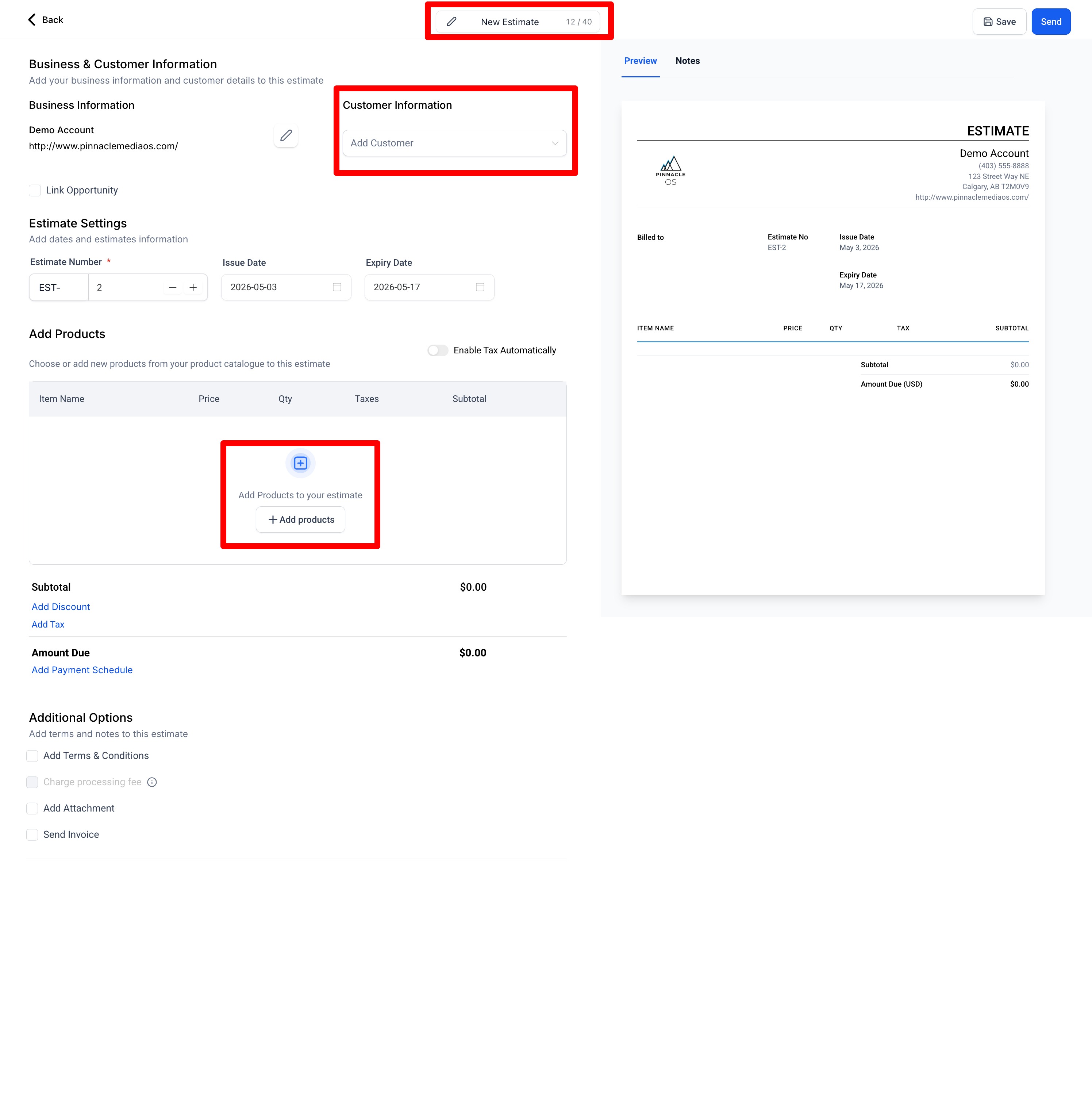
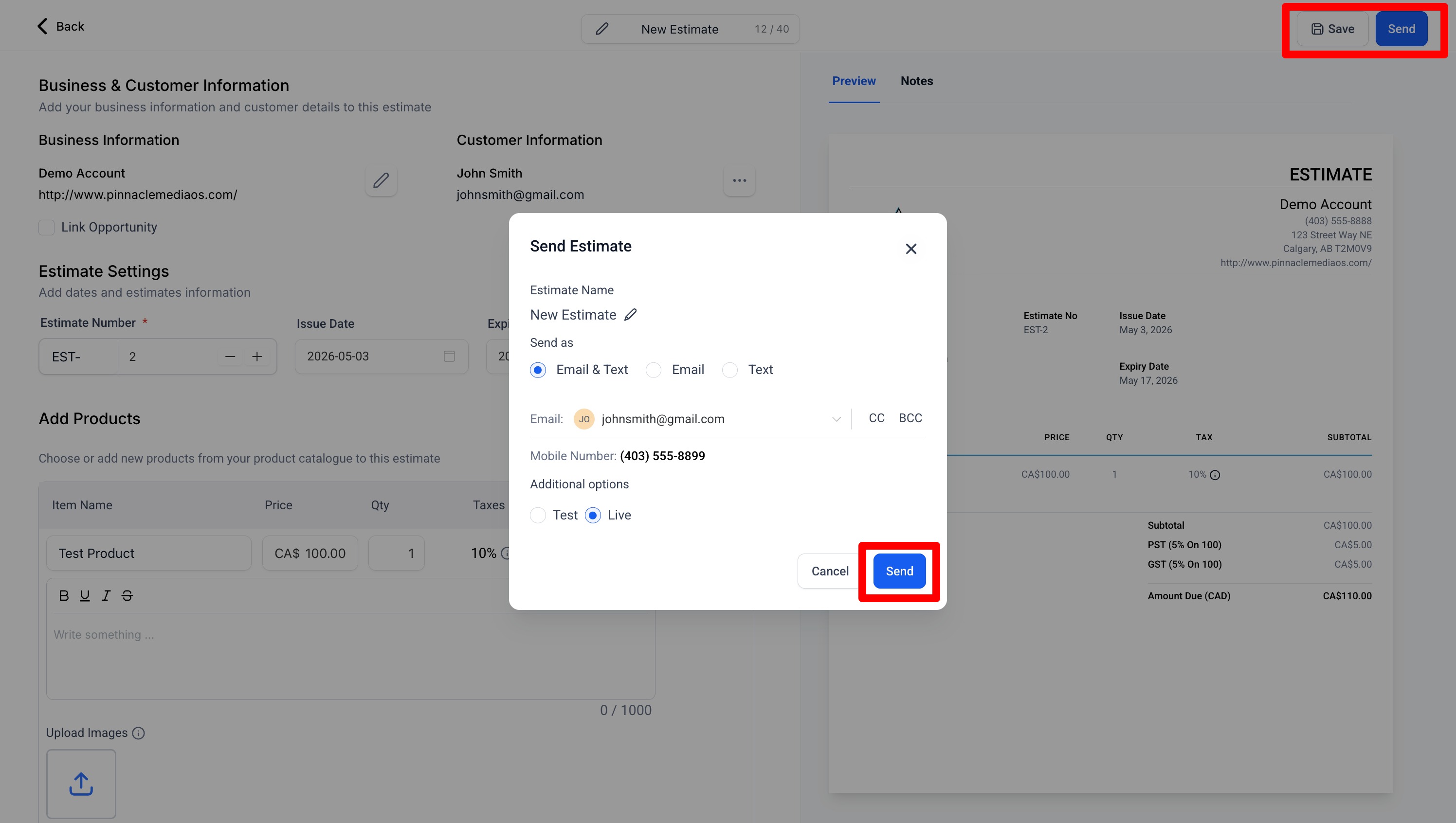
After configuring your Estimate,
Send to your client via Email, Text and/or both
This is how your Estimates are viewed through email and SMS Text
You can view these sent emails and texts in the Conversations or Contacts Tab per Client
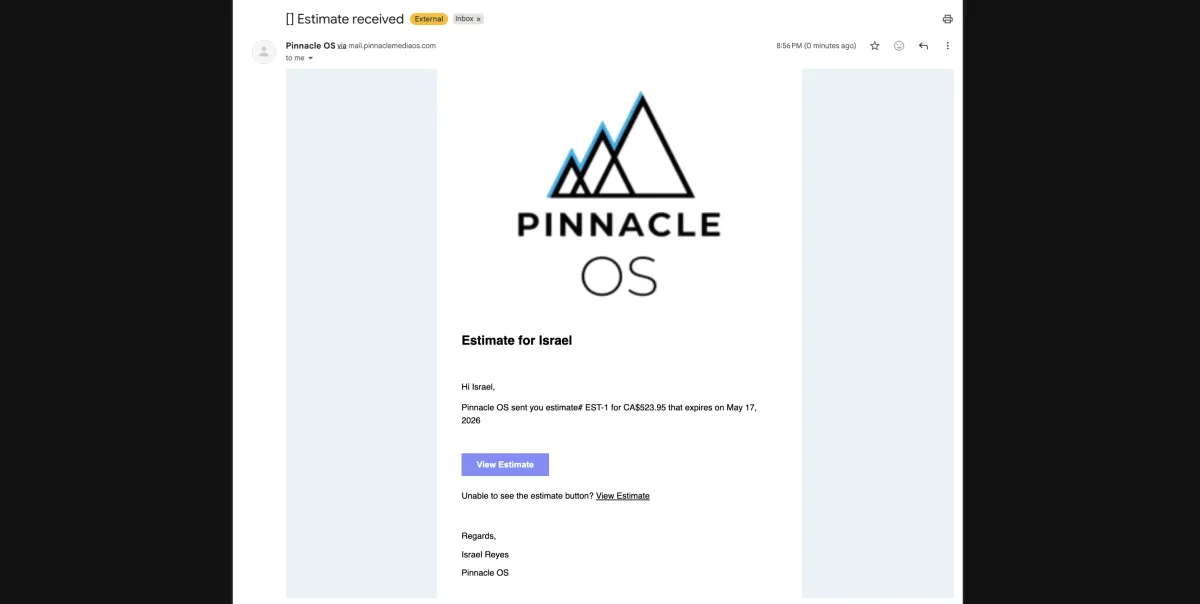
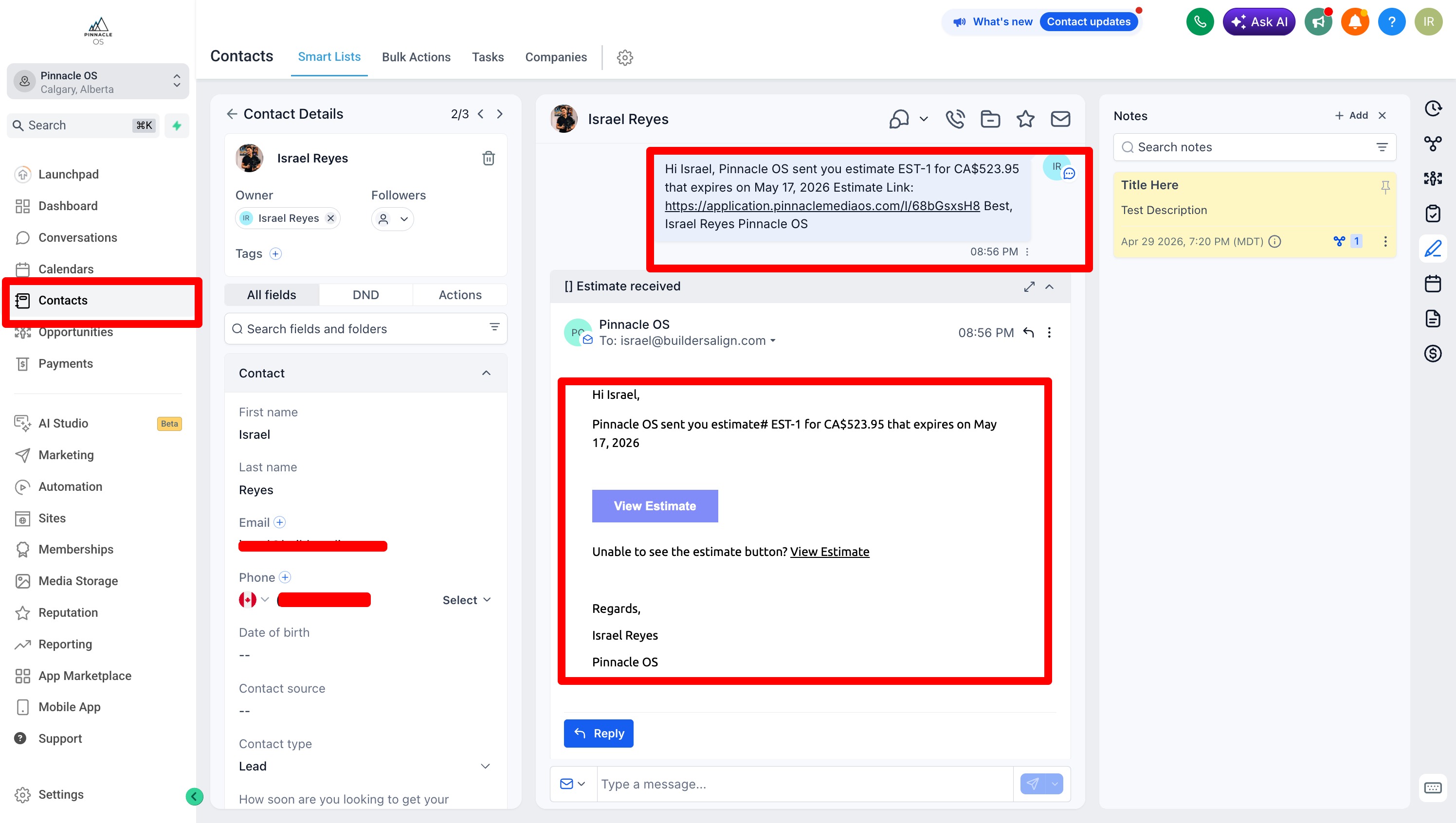
Recipients will see this:
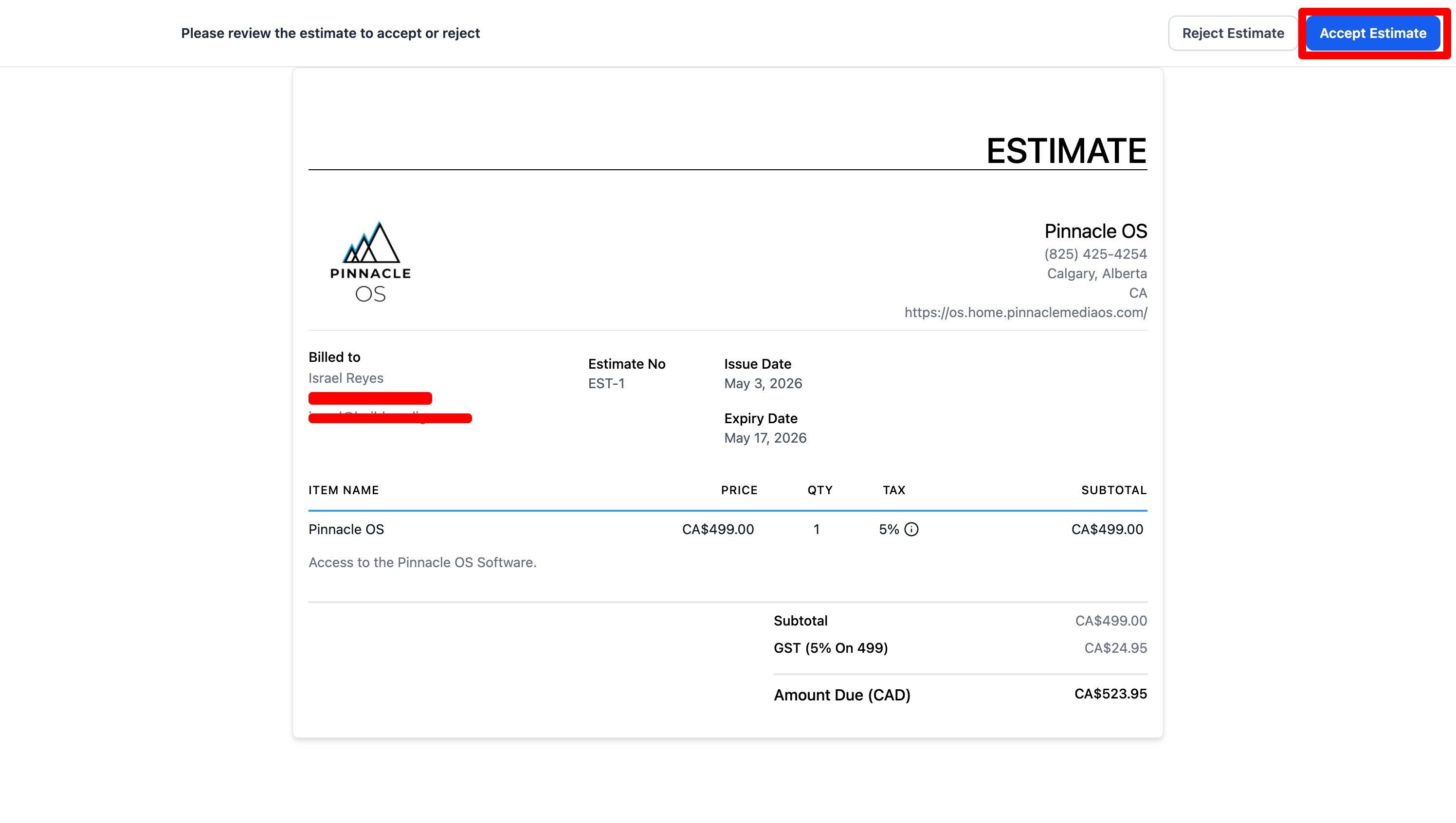
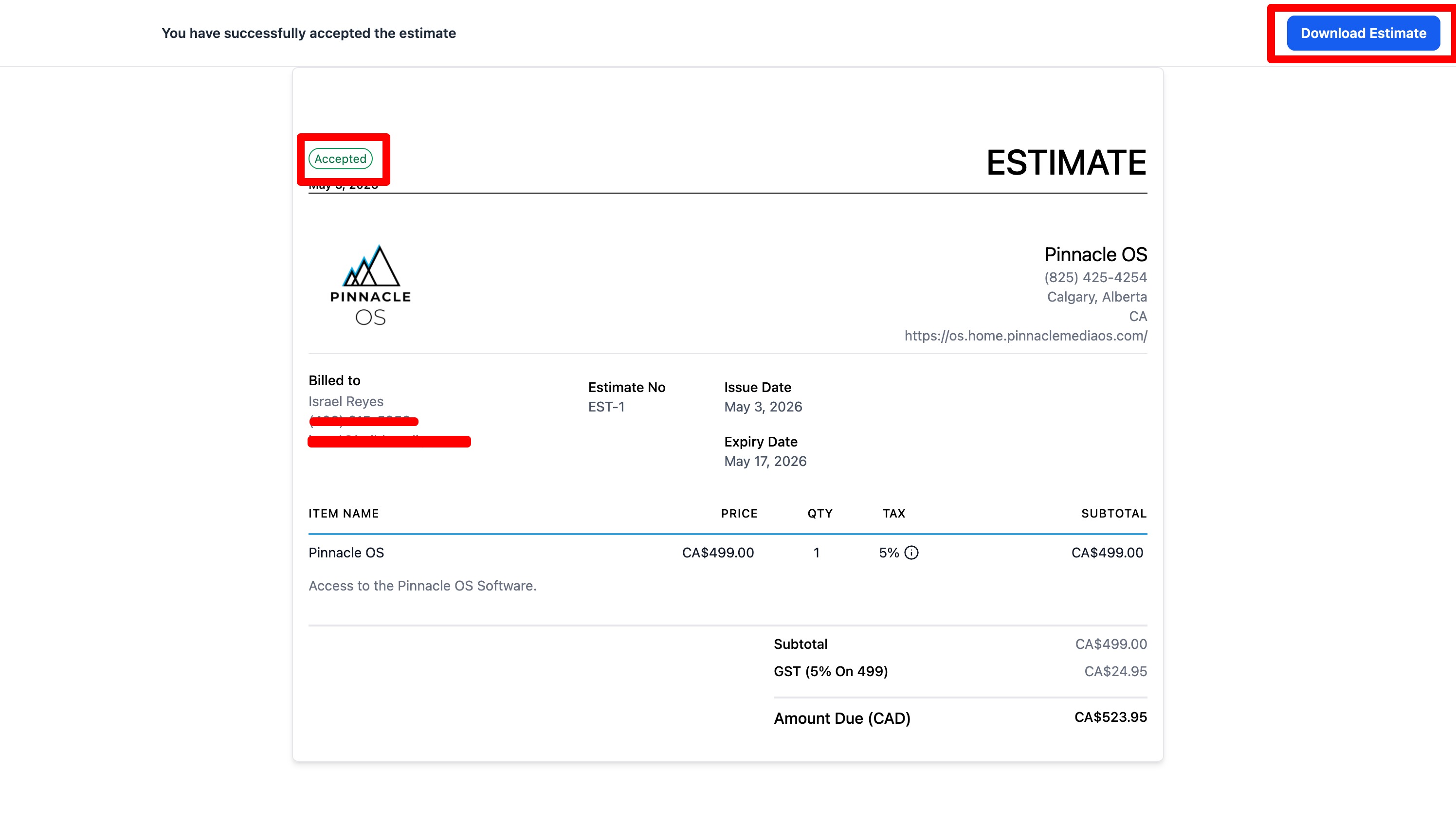
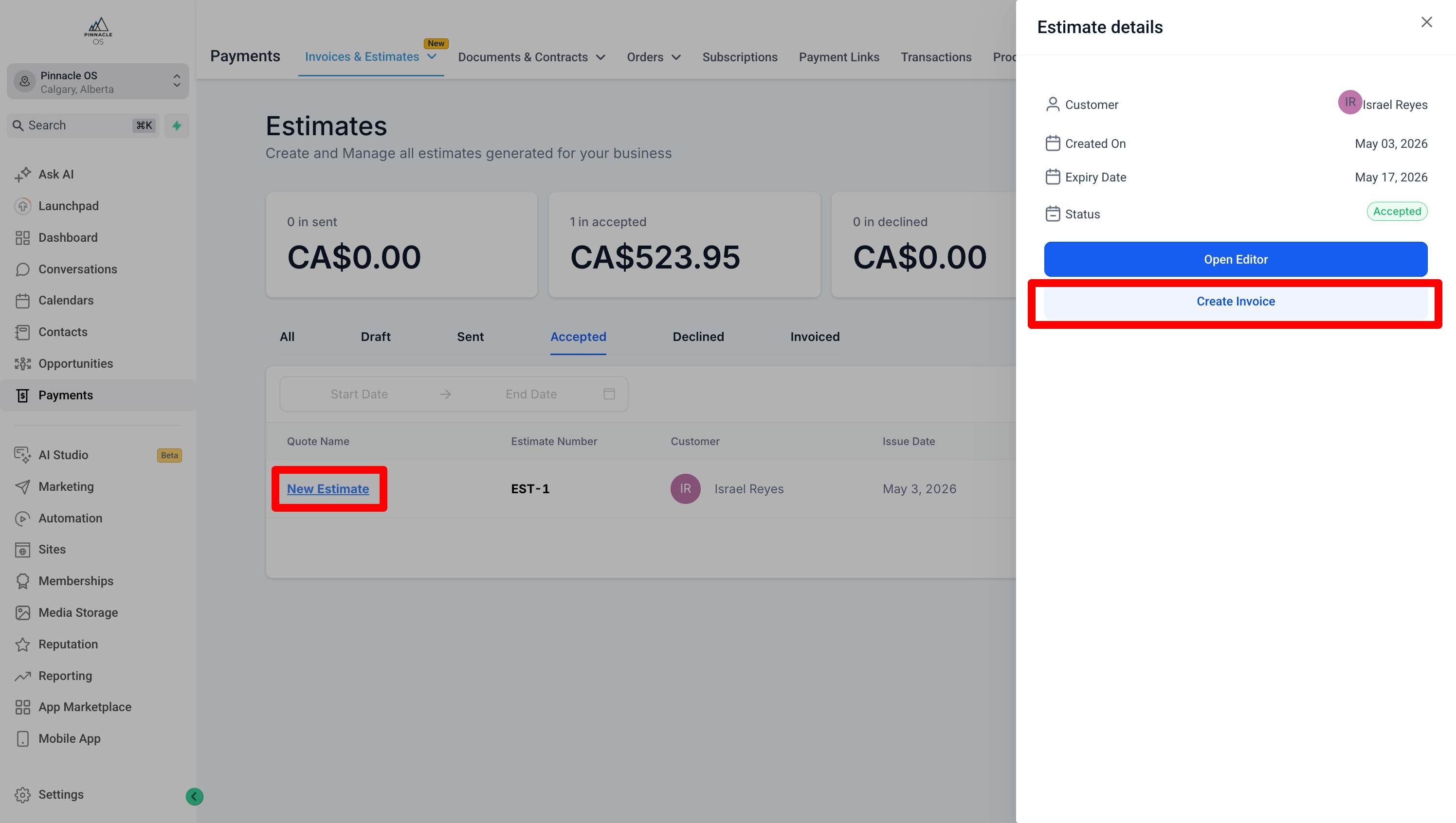
Accepted Estimates will be shown here
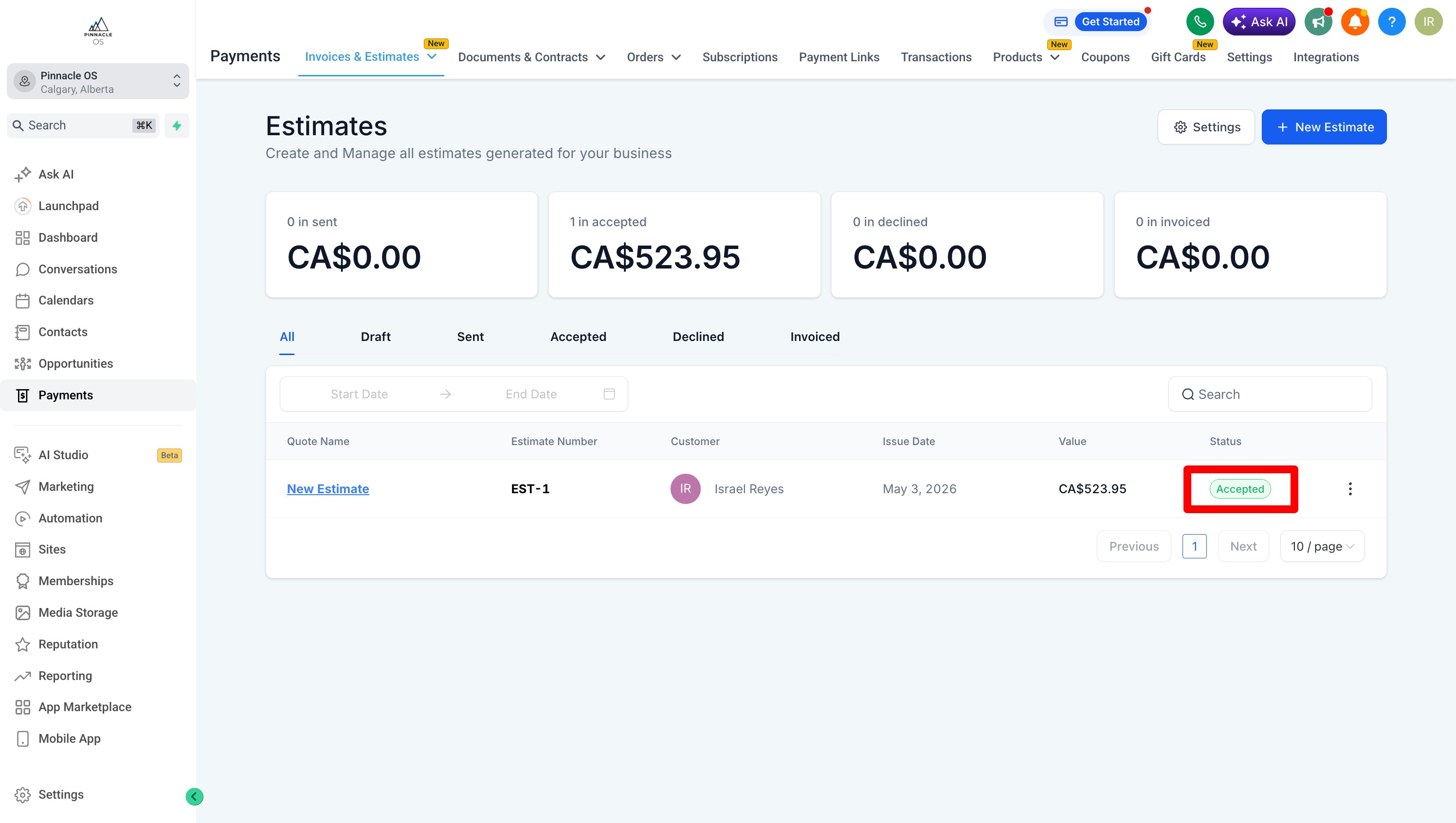
You can convert Estimates into Invoices and configure accordingly